iOS SDK Usage
Add Empower as a Company in Google Ad Manager (GAM)
Before using Empower in Google Ad Manager mediation, you must add Empower as an ad network company in the GAM panel.
Steps
-
Open Google Ad Manager
-
Navigate to:
Admin → Companies -
Click New Company
-
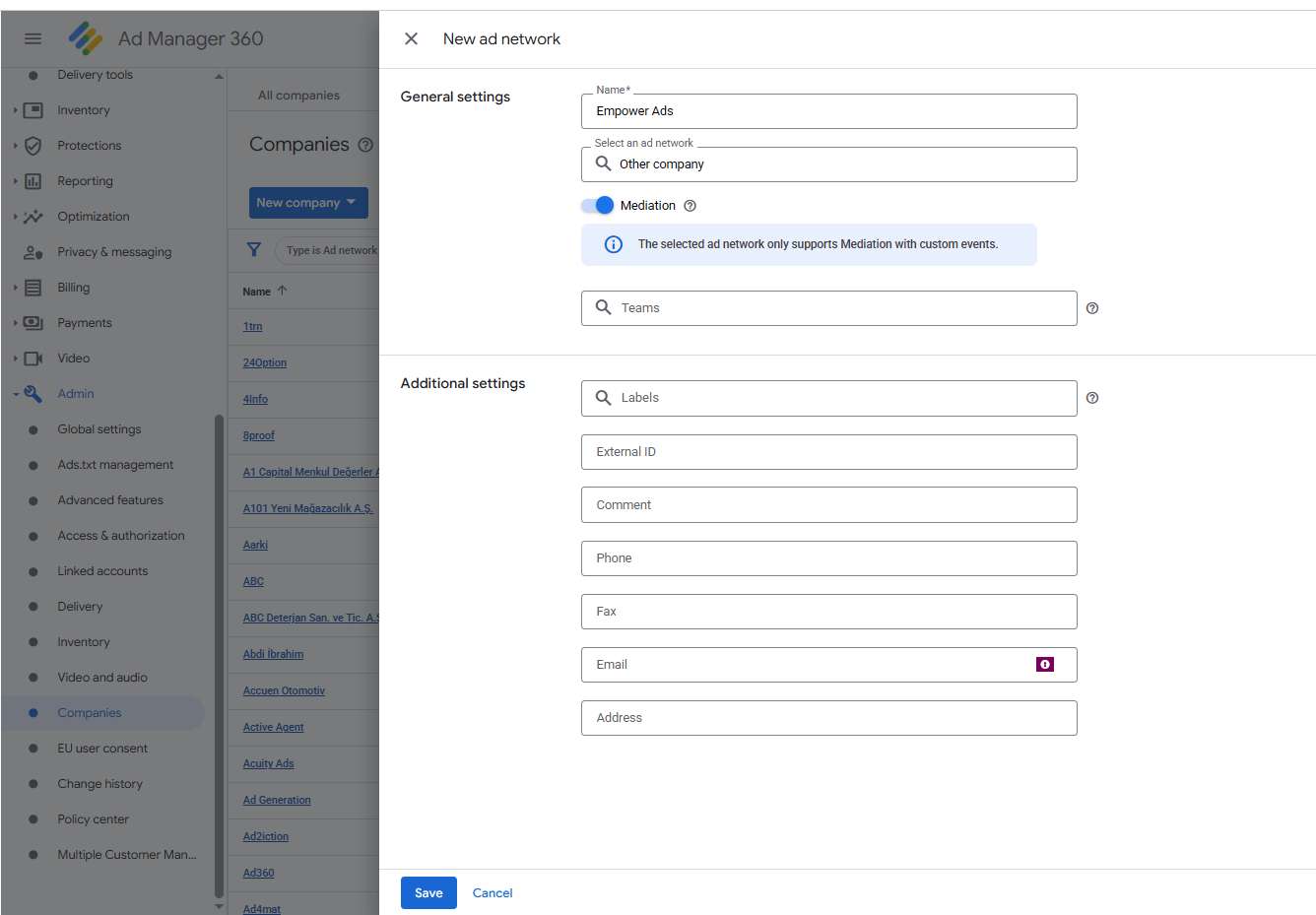
Configure the company with the following settings:
- Name: Empower Ads
- Select an ad network: Other company
- Mediation: Enabled
-
Click Save
After saving, Empower will be available as a selectable ad network in mediation and ordering configurations.
Reference Screenshot
The image below shows the exact configuration screen used to add Empower as a company in Google Ad Manager:
📌 Important Notes
- Empower must be added as an Ad Network company for mediation to work correctly
- Mediation is supported via custom events
- This step is required only for Google Ad Manager (GAM) integrations
Add Empower as a Custom Mediation Adapter in Google Ad Manager (GAM)
To use the Empower custom adapter in Google Ad Manager mediation, you must configure it inside a Yield Group as a custom ad source.
1. Open Yield Groups
- Go to Google Ad Manager
- Navigate to:
Delivery → Yield groups
Alternatively, you can access the Yield Groups page directly via:
https://admanager.google.com/your-network-code#delivery/yield_group/list
2. Create or Edit a Yield Group
- Click New yield group (or open an existing one).
- Select the appropriate:
- Platform (Android / iOS)
- Inventory type
- Ad format (Banner, Interstitial, Rewarded, etc.)
- Continue to the Ad sources section.
3. Add Empower as a Custom Adapter
- In the Ad sources section, add a new ad source.
- Select Custom event / Custom adapter (naming may vary in the UI).
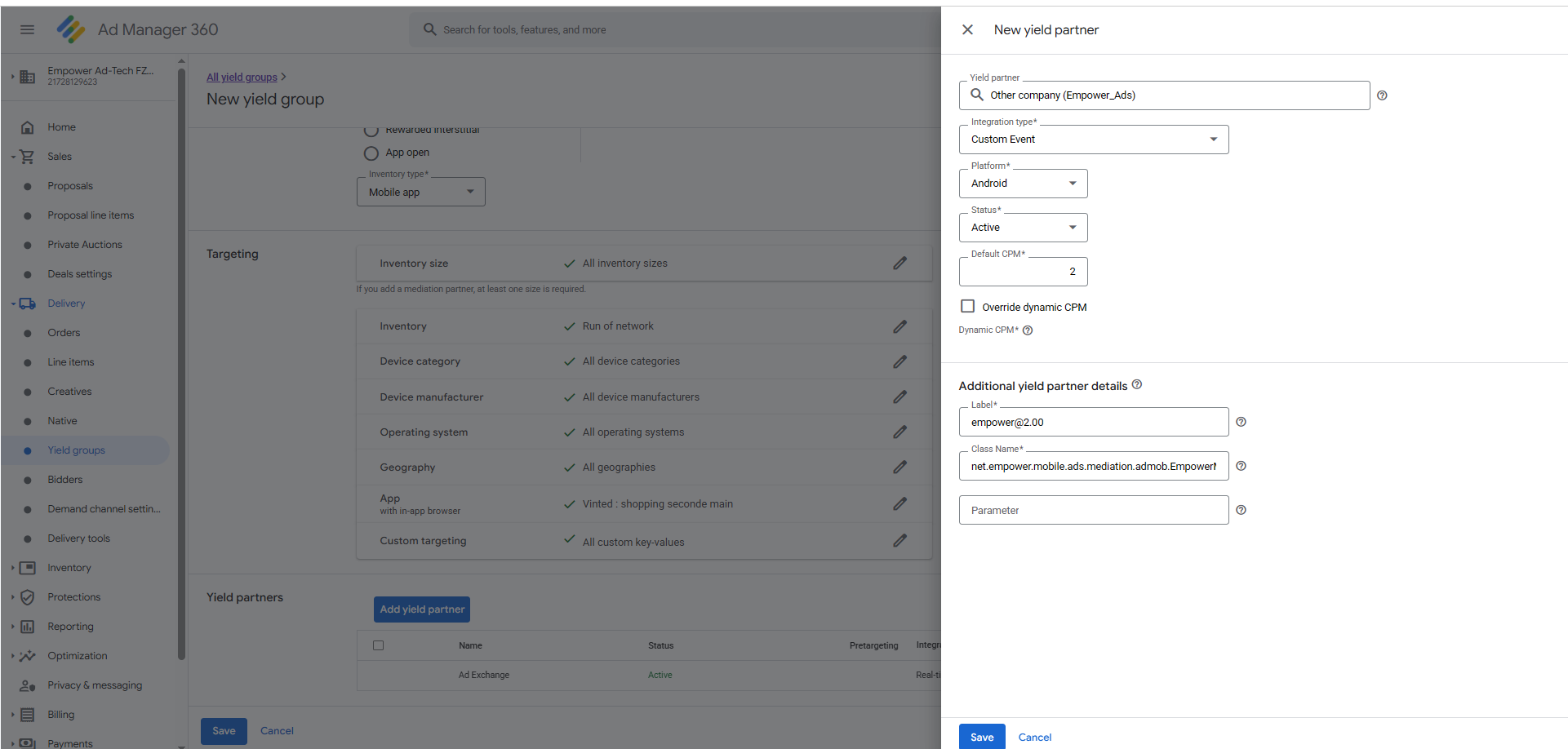
- Configure the custom adapter fields as follows:
Required Fields
-
Class name
Enter the Empower custom adapter class:
EmpowerAdmobAdapter.EmpowerMediationAdapterSwift
- Mapping Name
empower@2.00
4. Verify Class Name and Mapping Name Configuration
After adding the Empower custom adapter to the Yield Group, verify that the Class Name and Mapping Name fields are configured correctly.
The screenshot below shows a correctly configured Empower custom adapter entry in Google Ad Manager:
- The Class Name field contains the fully qualified Empower adapter class.
- The Mapping Name field matches the Empower network mapping identifier.
- Both values must exactly match the values provided by Empower.
Any mismatch (including typos or case differences) may prevent the adapter from initializing or serving ads.
Reference Screenshot
📌 Important
- Class Name and Mapping Name are case-sensitive
- Do not add extra spaces before or after the values
- Changes require the Yield Group to be saved before taking effect. These values will be provided by Empower.